


IYou’ve designed something in Canva and you’re ready to get it printed, but how do you supply the file so it prints cleanly, right to the edge, with no surprises? It’s easier than it looks. Here’s how to export a print-ready file from Canva, including bleed, crop marks and the right colour setup.
Canva updates its tools regularly, so the exact buttons may move over time — but the steps stay the same.
1. Start with the right page size
Set your size before you start designing. In Canva, choose Custom size and enter your finished print dimensions in millimetres. Designing at the right size from the outset keeps your artwork sharp and your printing cost-effective.
Common Australian print sizes:
- DL — 99 × 210 mm
- A6 — 105 × 148 mm
- A5 — 148 × 210 mm
- A4 — 210 × 297 mm
- A3 — 297 × 420 mm
Not sure which size you need? Just ask us.
2. Turn on bleed
Bleed is a small margin of extra background that extends past the trim line. It means that when your printed piece is cut to size, the colour or image runs right to the edge — with no thin white slivers.
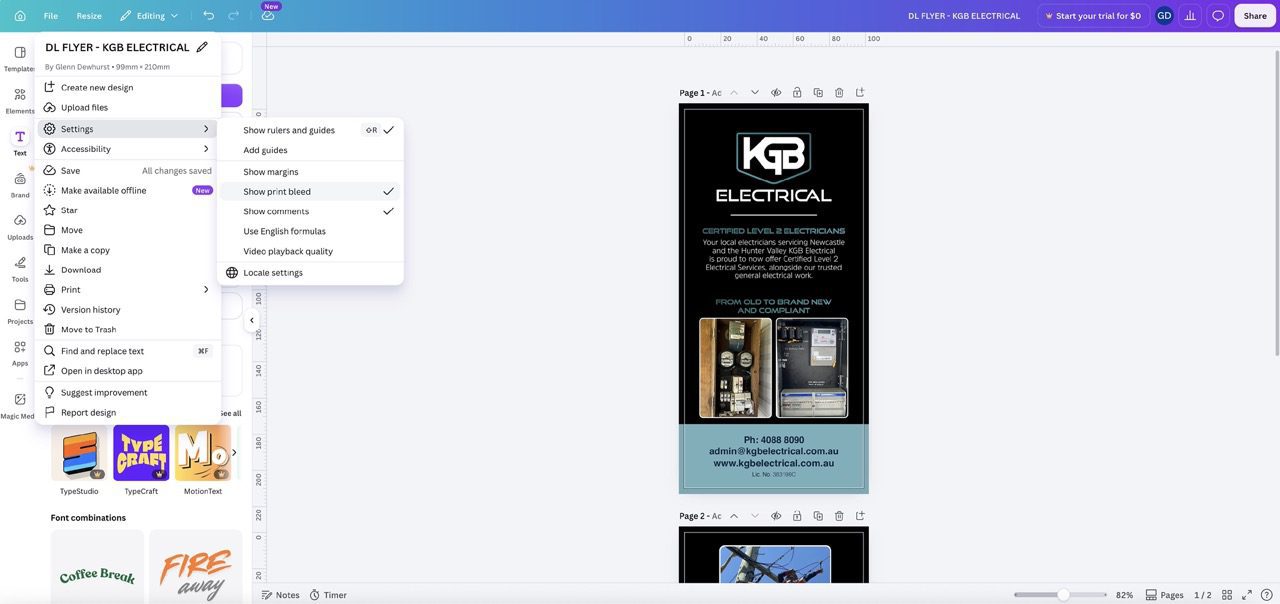
In Canva, turn on bleed using the built-in setting: open the File menu (or your design settings) and switch on “Show print bleed”. Canva adds a dashed line just outside your page to mark the bleed area. Extend any background colours or images out to that dashed line — and keep important text and logos a few millimetres inside the page edge, so nothing important is trimmed off.
3. Export as a print-ready PDF with crop marks
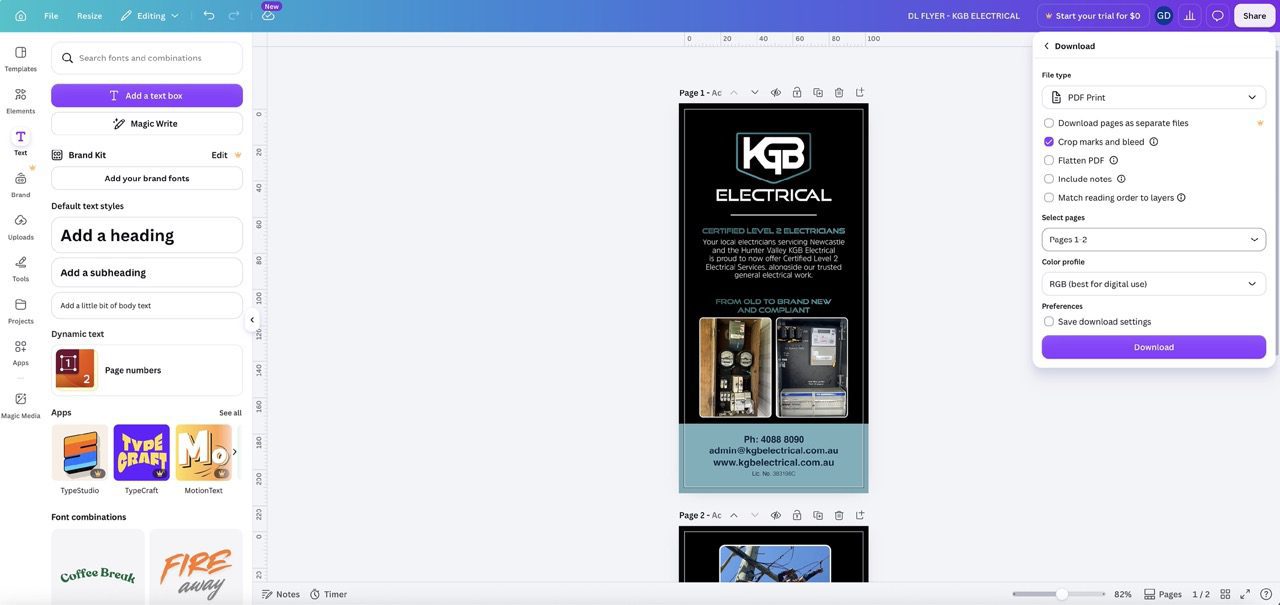
Crop marks are small lines at each corner that show us exactly where to trim. To export your file:
- Click Share, then Download.
- Set the file type to PDF Print.
- Tick Crop marks and bleed.
- Click Download.
Your PDF will have crop marks in each corner and the bleed included — ready to send to us.
4. Colour: RGB or CMYK?
Screens display colour in RGB, while printing uses CMYK ink — so some colours can shift slightly when printed, especially vivid blues and greens.
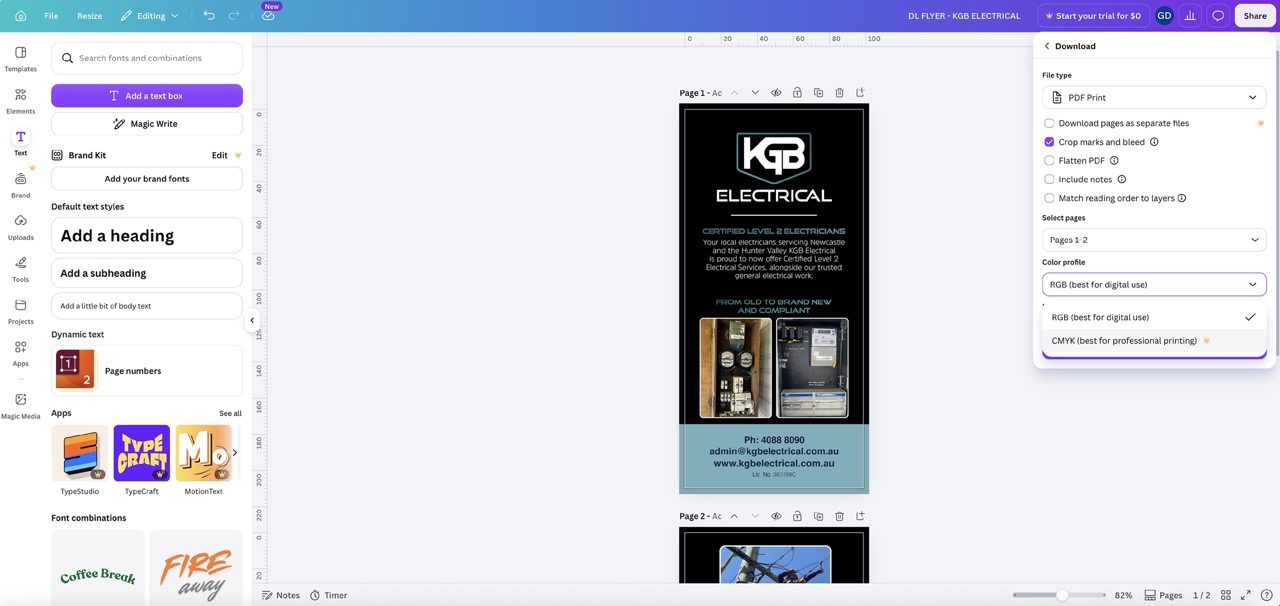
If you have Canva Pro or Teams, you can export in CMYK: in the PDF Print download options, set the colour profile to CMYK. On free Canva, your file will be RGB, which is perfectly fine — just let us know you designed in Canva when you request your quote, and we’ll take care of the conversion.
Either way, if exact brand colours matter to you, tell us and we’ll check them before printing.
Quick pre-flight checklist
- Designed at the correct finished size, in millimetres.
- Bleed turned on, with backgrounds extended into the bleed area.
- Important text and logos kept a few millimetres inside the edge.
- Photos and logos look sharp (avoid stretching small images).
- Exported as PDF Print with crop marks and bleed ticked.
- Opened the PDF and checked it looks right before sending.
Not sure your file is right? Send it over
At Printnova in Warners Bay, we print for businesses right across Newcastle, Lake Macquarie and the Hunter — and we’re always happy to check your Canva file before it goes to press. Take a look at our artwork specifications and printing templates, or if you’d rather leave the design to us, our graphic design team can help.
Get in touch or request a quote to get started.
Frequently asked questions
Does Canva add bleed automatically?
Not unless you turn it on. Switch on “Show print bleed” in your design settings, then extend your backgrounds out into the dashed bleed area before you export.
Can I export a CMYK file from Canva?
Yes — on Canva Pro or Teams. Choose PDF Print and set the colour profile to CMYK. On free Canva, files export as RGB and your printer converts them.
What size should I make my Canva design for printing?
Use Custom size and enter your finished dimensions in millimetres (for example, A5 is 148 × 210 mm). Designing at the right size keeps quality high and cost down.
Why do my printed colours look different from my screen?
Screens are backlit and use RGB, while print uses CMYK ink — so some colours, especially bright blues and greens, print a little differently. If colour is critical, ask us to check it before printing.





